

01Creators
Watching LIVE? Your favourite creators don’t always go LIVE when you’re free. Record the feeds you choose while you’re busy, then return to the video and conversation when you have time.
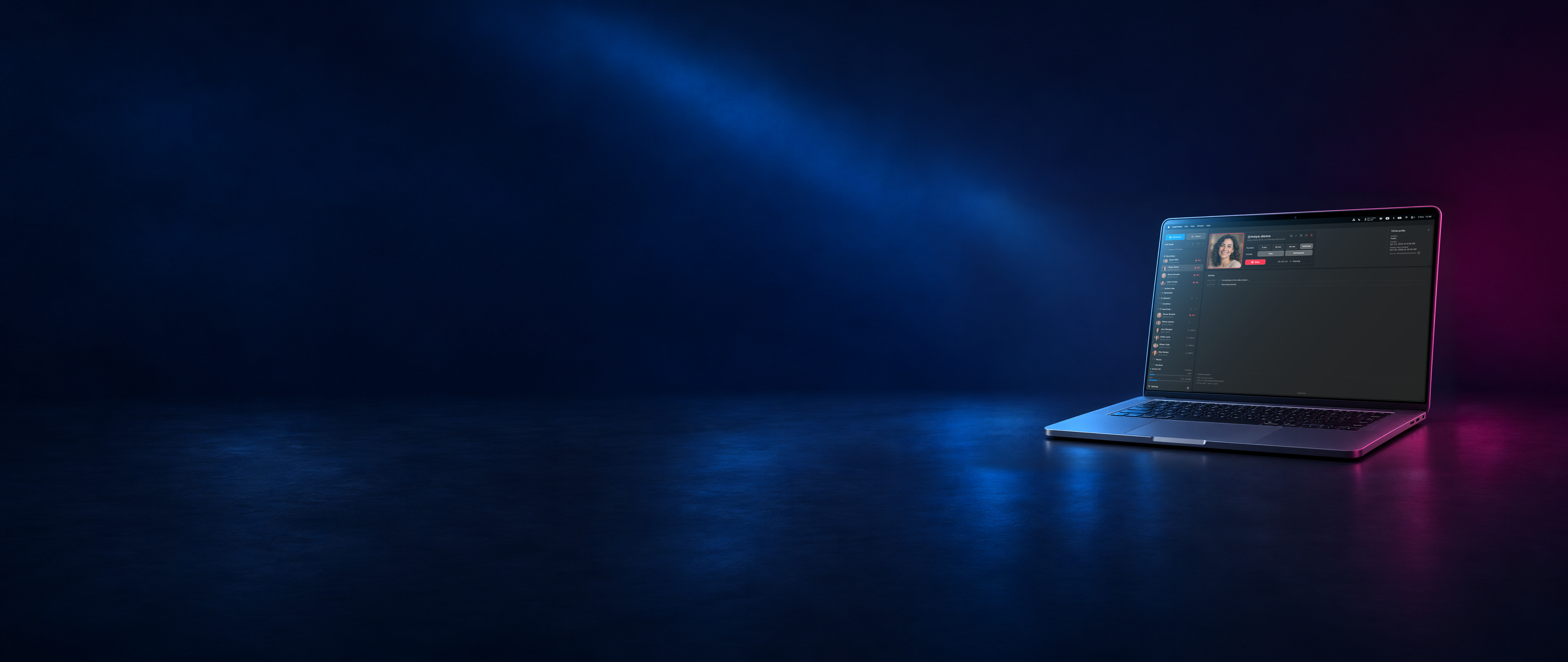
Record several creators at once on one computer, manually or automatically. Keep each session separate for watching, comparison or team feedback.
Keep creators, topics and projects organised in folders and favourites. Search your feeds and refresh LIVE status to find who is streaming.
Start recording manually, choose a duration or Unlimited, and include chat for later review. Optional participant data records observed multi-guest activity.
See when a recording starts and follow its progress. Keep the username and LIVE ID available when you need to identify the session you recorded.
Check available profile details to understand which account you are following, including its user ID, creation date and last display name change.
Record one or several LIVE streams at once, automatically or manually. Video and chat are saved on your computer, ready whenever you are.
See how it worksIn BETA testing for macOS and Windows.
Not yet available to download.
Watching LIVE? Your favourite creators don’t always go LIVE when you’re free. Record the feeds you choose while you’re busy, then return to the video and conversation when you have time.
Managing creators? Record several creators on one computer. Review video and captured chat to assess content quality, prepare specific feedback and help your team improve. Spend less time gathering material.
Working in marketing? How was a product presented? What did viewers ask? Review presentations and captured chat, then use your observations to improve messaging, creator briefs and future campaigns.
Checking facts or researching? Return to what was actually said. Revisit recordings and captured messages to check context, compare discussions and prepare your own response.
Watch when you have time. Learn from your own LIVE. Review your team’s content. Choose what matters to you, and record it your way.
Your own LIVE, creators you follow or your team.
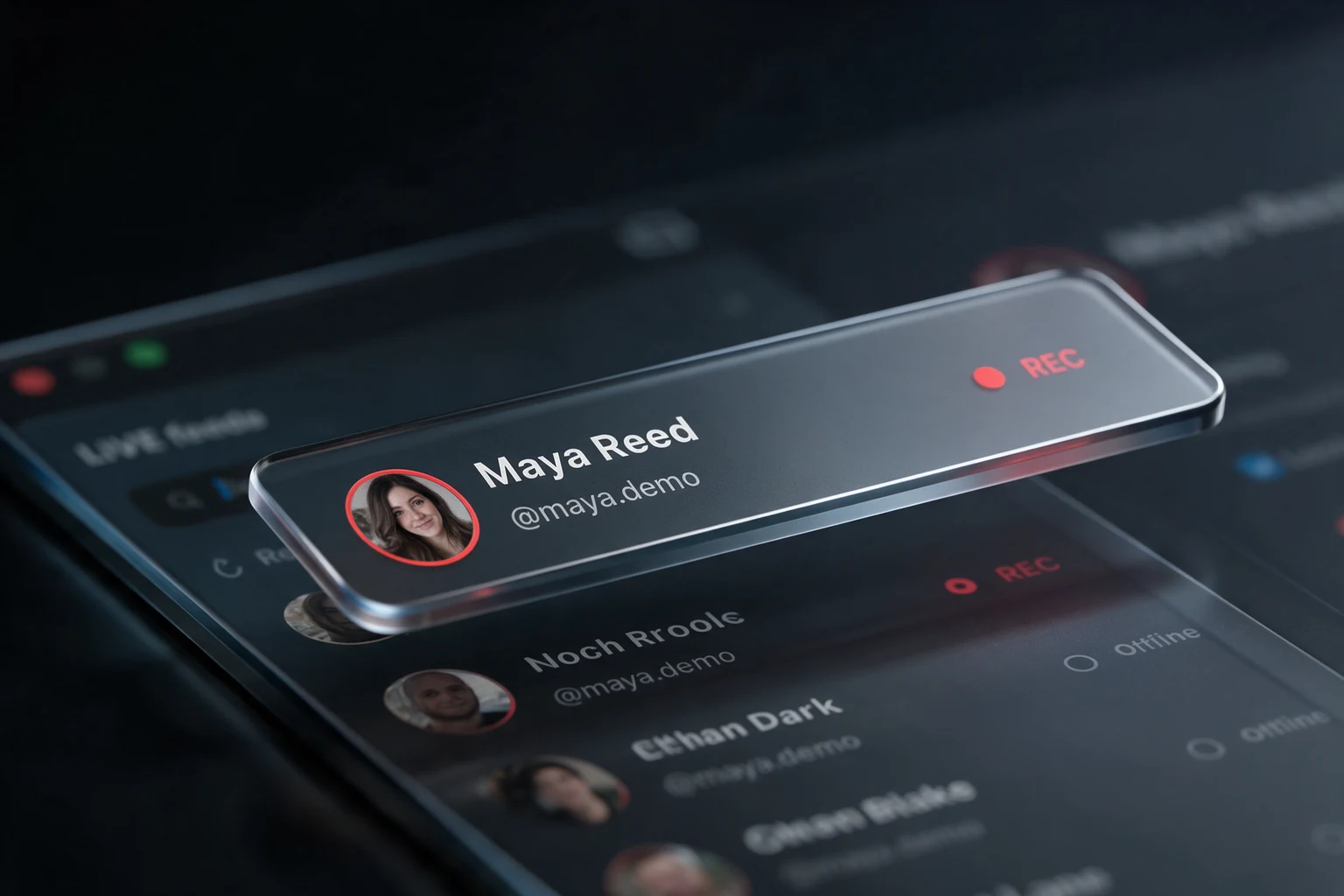
Choose when to monitor your feeds.
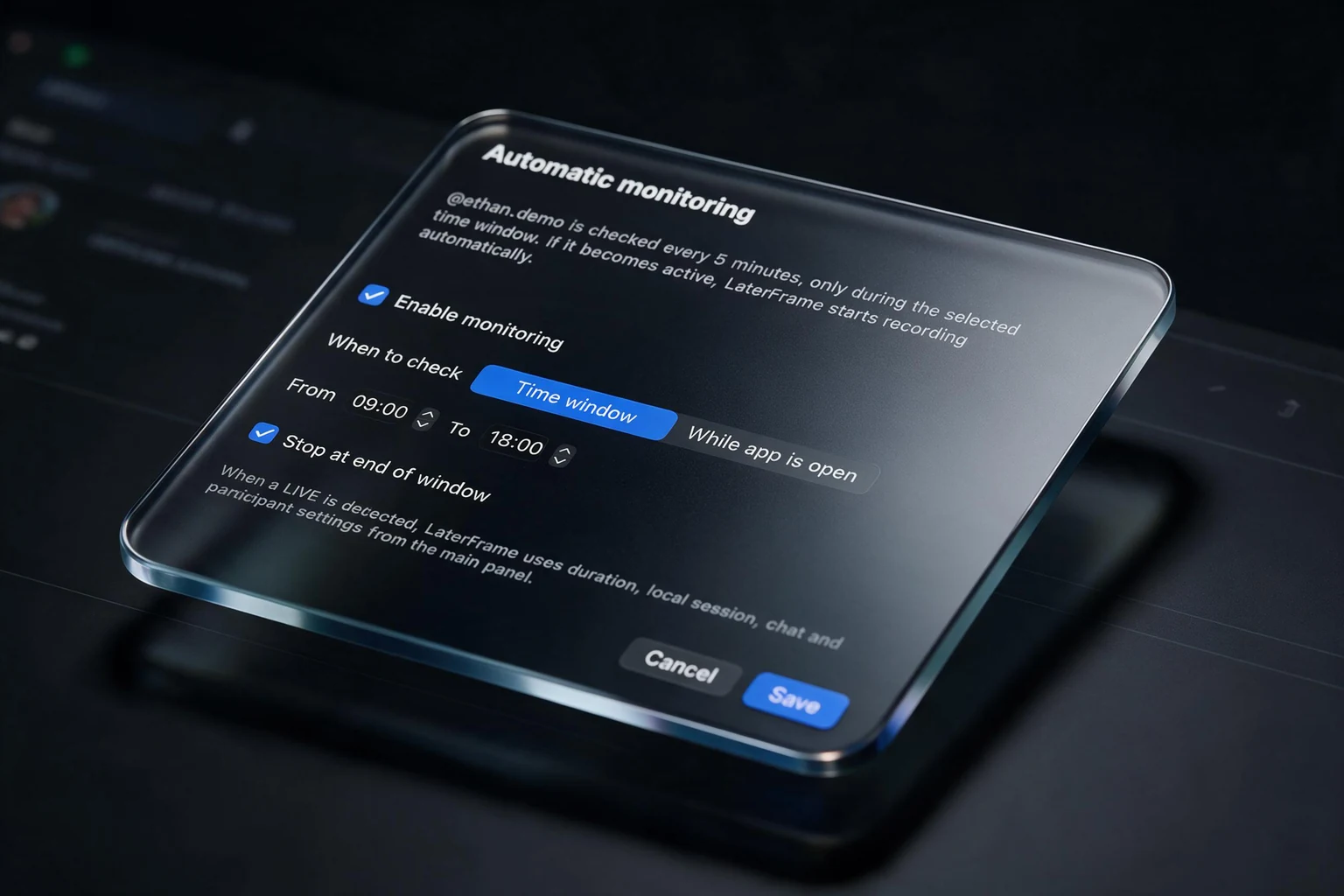
Return to the video and captured chat.
Hosting your own LIVE while other creators are streaming? Managing a team that goes LIVE together? Record several streams on one computer and review each session afterwards.
Each recording stays separate in your library. Catch up on creators you follow, compare discussions or prepare feedback for your team, with less time spent collecting material.
What questions did you miss? How did viewers respond to a topic or product? Revisit the video and captured chat, then turn your observations into better content, team feedback or your next campaign.
Choose your settings and keep an eye on active recordings and system resources while LaterFrame works.
Find saved sessions in your local library. Search and sort recordings to return to a creator, compare sessions or catch up when you have time.
Keep observations, questions and feedback alongside a recording. Note the moments you want to revisit or discuss with your team.
Play the video and open captured chat for review. Check the saved message count, peak observed audience, date and duration. Available multi-guest observations and LIVE and user IDs add context when investigating a session.

Find out how LaterFrame fits the way you watch, create or work.
Yes. Record several TikTok LIVE streams on one computer, manually or automatically. Each recording is saved separately for you to watch and review. Capacity depends on the app’s supported limits, your computer and your connection.
Yes. Enable chat capture to save messages with timestamps in a CSV file. Open it in a spreadsheet to read, sort and filter questions and responses. Chat capture depends on the source connection, so interruptions can leave gaps.
On your computer. Your local library brings recordings and their associated files within reach for playback, notes and further analysis in your own tools. You choose where to keep backups; LaterFrame does not create them automatically.
LaterFrame is in BETA testing for macOS and Windows. Download details and supported systems will be announced here when each version is ready.
Manual recording starts when you start it. Automatic recording starts when a periodic check detects the LIVE. These checks can miss the beginning or a short session; LaterFrame cannot retrieve footage from before recording began.
Yes. You can be away from your desk while LaterFrame records. Leave your computer awake, the app running and the internet connected, with access to the LIVE source.
LaterFrame currently supports TikTok LIVE. Record your own sessions or other accessible LIVE streams, manually or automatically. Support for additional platforms is a future direction, not a feature available today.
Built by a creator who needed to record other LIVE streams while hosting his own. Follow the campaign and hear the moment it launches.
Coming soonCAPTURE TODAY.WATCH TOMORROW.